Adobe Firefly

4.60
Just say what you want. Firefly can create images and videos, then finish them in Photoshop.
Advertisement 728 × 90
CompanyAdobe Inc.
CategoryAI Image
Released2023-03
Updated2026-08-14

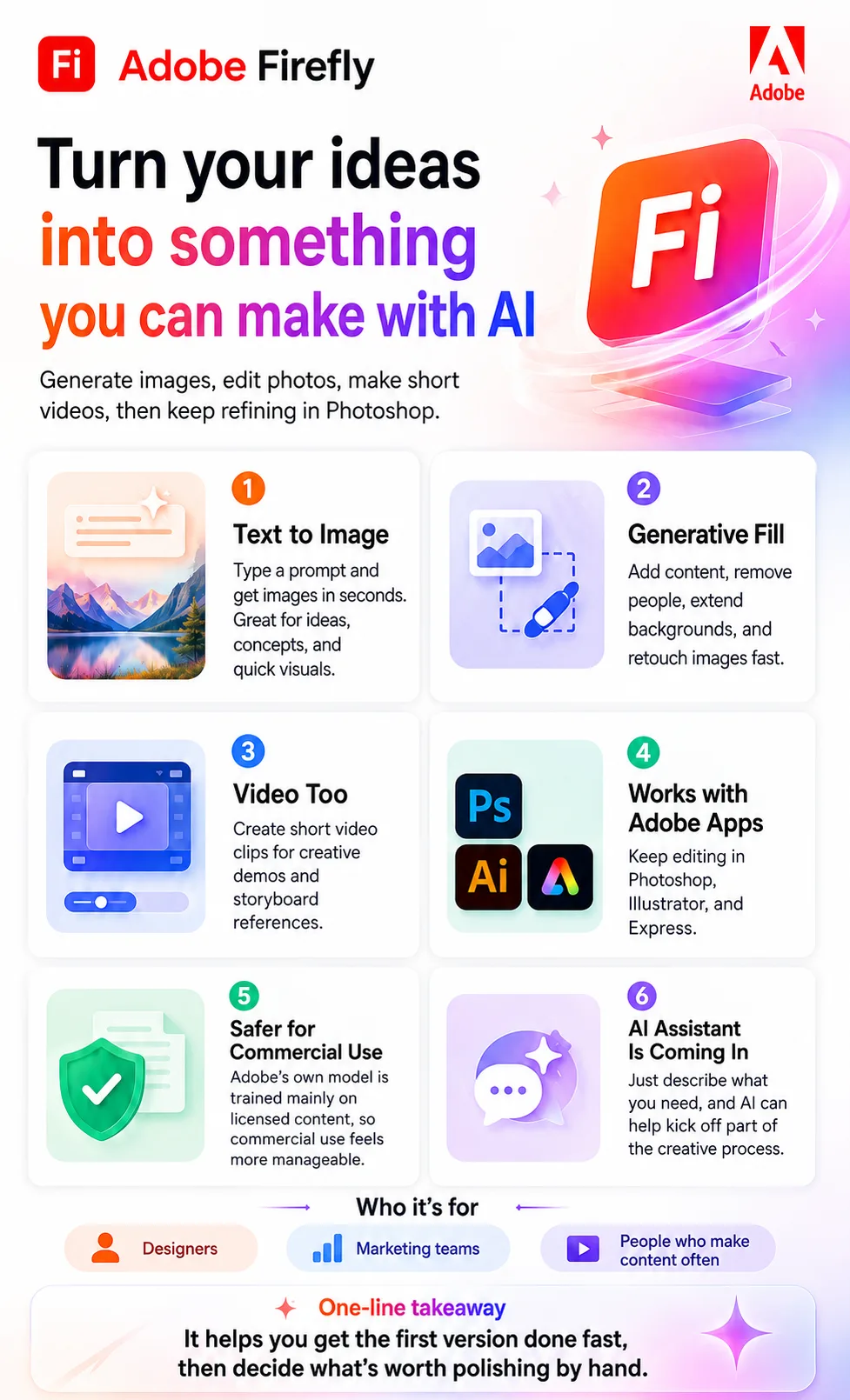
Adobe Firefly One picture says it all.

Adobe Firefly

Adobe Firefly Overview

Firefly first made its public debut in March 2023. Back then, the focus was mainly on text-to-image generation and text effects.

Adobe quickly started bringing Firefly into its Creative Cloud apps, with features like Generative Fill in Photoshop and Generative Recolor in Illustrator.

At this point, though, calling Firefly simply an “AI image generator” feels a little outdated.

Image generation is still its most mature capability, but Firefly can now generate video, translate audio and video, edit creative assets, and even give users access to models from companies such as Google, OpenAI, Runway, and Black Forest Labs.

In March 2026, Adobe said Firefly offered a choice of more than 25 AI models.

Then, in 2026, Adobe added another layer: AI Assistant.

The idea is that you no longer need to think about which tool or feature to use. You can simply describe the result you want.

For example, you could say, “Turn this product photo into an Instagram ad and give the background a summer feel.” The assistant will then try to string together different Adobe capabilities to handle the individual steps.

Firefly AI Assistant entered public beta in April 2026.

Adobe is also testing a new unified workspace designed to bring generation, editing, asset management, and a video timeline into one place. That experience is still in private beta.

Adobe Firefly Pricing

PlanPriceDescription
Free Free People who want to try it out first
Standard $9.99/month People who mainly create images and occasionally make videos or audio
Pro $19.99/month Individual creators who frequently make images and videos and also need Photoshop on web/mobile and Express
Pro Plus $49.99/month People who frequently use video and advanced models
Premium $199.99/month Frequent generation users who want more access to the Firefly Video Model

Adobe Firefly Key Features

  1. Text-to-image generation
    This is probably the easiest Firefly feature to get started with. For example, you could type: “A panda wearing traditional Hanfu, sitting in a bamboo forest and drinking tea, in an ink-wash painting style.”

    Firefly will generate an image based on that description. From there, you can keep adjusting the style, composition, or reference image instead of starting over every time. For brainstorming, concept art, or social media visuals, it can be much faster than working from a blank canvas.

  2. Generative Fill and image expansion
    This is closer to the kind of AI feature designers might actually use in day-to-day work.

    If there’s something you don’t like in a photo, you can select the area and say, “Remove the people in the background,” or, “Extend the image to the left and continue the street naturally.”

    The AI fills in the missing area based on the surrounding image. It’s especially useful for things like cleaning up backgrounds, extending a canvas, or adding missing elements — the kinds of tasks that can take time without requiring much creative decision-making. In Photoshop, these Firefly-powered features are already built into the everyday editing workflow.

  3. AI video generation
    Firefly can also generate video from text prompts or reference images.

    If you use Adobe’s own Firefly Video Model, clips are currently generated at 5 seconds and 24 FPS by default, with 540p, 720p, or 1080p resolution options.

    But Firefly is no longer limited to Adobe’s own models. Partner models such as Veo, Kling, and Runway can also be used directly inside Firefly, and each model supports different video lengths and resolutions.

    For example, the Kling 3.0 series can generate clips up to 15 seconds, while Runway Gen-4.5 offers 5-, 8-, or 10-second options. So describing Firefly today as a tool that “only generates 5-second videos” is no longer really accurate.

  4. Audio and video translation
    Firefly can translate speech in audio or video into other languages while trying to preserve the feel of the original speaker’s voice.

    For video, there’s also a Lip Sync feature that adjusts mouth movements to match the translated speech. Adobe notes, however, that Lip Sync is available only with eligible enterprise Firefly plans.

    It supports a range of languages, including English, Spanish, French, German, Italian, Japanese, Korean, and Simplified Chinese. For people producing international content or localizing videos, this can be more useful in actual production work than image generation alone.

  5. Firefly AI Assistant
    This is one of the more interesting recent changes to Firefly.

    The old question was, “Which tool should I use?” Adobe is trying to shift that toward, “Just tell me what you want the final result to look like.”

    For example, you can say, “Make this photo a little warmer and blur the background behind the person.” AI Assistant will figure out which creative tools it needs and work through the steps for you.

    Behind the scenes, it can draw on Creative Cloud capabilities from Photoshop, Illustrator, Lightroom, Premiere, Firefly, and more. It’s still in public beta, though, so it’s better to think of it as an evolving feature rather than a fully mature production tool.

  6. More of the creative workflow in one place
    Adobe is also trying to reduce the constant back-and-forth of generating something, downloading it, opening another app, and uploading it again.

    The newer Firefly workspace is gradually bringing generation, asset management, Boards, and a video Timeline into one place. Adobe’s newer unified generation and editing experience goes a step further, aiming to combine creation, editing, and project assets inside a single workspace.

    It’s still too early to say Adobe has completely solved the problem of jumping between different apps, but the direction is pretty clear.

Adobe Firefly Editorial Review

What does Firefly actually feel like to use?

To me, Firefly is best thought of like this:

Get the first version out quickly, then decide what’s actually worth refining.

For images, it works especially well when you have a rough idea of what you want, but you haven’t fully figured out what it should look like yet.

You can generate a few compositions before designing a poster, explore visual directions for an event concept, or quickly create an image when you suddenly need something for social media.

What Firefly really saves is not so much the time it takes to go from 0 to 100, but the time it takes to go from 0 to 60.

A designer might normally start by gathering references, building layouts, and testing colors. Now, AI can take care of some of that early exploration and give you a few directions to react to.

But things get harder once the requirements become very specific:

“This cup has to look exactly like this.”

“The logo can’t move.”

“The fingers need to look natural.”

“This line of text has to be completely correct.”

That’s where AI starts to struggle.

The closer you get to a finished commercial asset, the more consistency and control matter. And at that point, manual refinement becomes much more important.

Generative Fill may actually be more useful than pure image generation

If you already work in Photoshop, I’d argue that the Firefly features most likely to become part of your everyday workflow aren’t necessarily text-to-image generation.

They’re things like Generative Fill and image expansion.

The reason is simple.

Generating an image from scratch can be hit or miss depending on what you need.

But requests like:

“Remove this person.”

“Extend the background a little further to the right.”

“Add a few trees here.”

are very specific. And they’re exactly the kind of jobs that used to take real manual effort.

If AI handles that first pass and the designer only needs to clean up the final details, the workflow feels much more natural.

Video is still better for concepts and supporting footage

Firefly’s video capabilities have improved quickly over the past couple of years, and it can now use third-party models as well.

But compared with real-world filming, 3D production, or mature post-production workflows, it currently makes more sense for things like:

  • testing creative ideas
  • creating storyboard references
  • making short transitions
  • generating B-roll
  • building pitch demos

It’s less suited to generating an entire commercial from start to finish in one go.

Whenever you need consistent characters, accurate product details, or tightly controlled brand elements, someone still needs to keep a close eye on the output.

AI Assistant has a lot of potential, but I wouldn’t hand over everything yet

The most interesting thing about AI Assistant is that Adobe is starting to move AI from simply generating things to actually operating creative tools.

That may be more important than adding yet another image model.

The limitation is also obvious: it’s still in beta.

For simple tasks, it can save a lot of time. But once a job involves visual judgment or a complicated series of steps, the result may not be better than what an experienced designer could do directly.

For now, it makes more sense to think of AI Assistant as an assistant that can run steps for you, rather than a designer you can trust to deliver the final work on its own.


Summary

What works well

It fits naturally into the Adobe ecosystem.
Once you generate something, you can keep working on it in Photoshop, Illustrator, Express, and other Adobe tools. You’re less likely to end up with an AI-generated asset that’s difficult to refine afterward.

The position on commercial use is relatively clear.
Adobe says its own Firefly models are trained mainly on licensed content and public-domain material. For non-beta features, Adobe explicitly allows generated outputs to be used in commercial projects. Some enterprise plans also include intellectual property indemnification.

You can get started without being a designer.
A lot of Firefly features begin with simply typing what you want. You don’t need to learn a complicated toolset before you can do anything useful.

You’re no longer limited to Adobe’s own models.
Firefly is gradually becoming a single place to access multiple AI models. Depending on the task, you can choose from models by Adobe, Google, OpenAI, Runway, and others.

Images, video, and audio are starting to come together.
For people who create social content, ad assets, and short-form video, that move toward an all-in-one workflow is increasingly attractive.

What can be frustrating

Fine control still isn’t as good as doing it manually.
The more specific your requirements become, the more likely you are to get something that is “mostly right, except for that one detail.”

Video generation costs noticeably more than regular image generation.
Video, audio, and partner models mainly consume generative credits, so heavy users need to keep an eye on their allowance.

Some newer features are still in beta.
AI Assistant, parts of the video editing experience, and the newer unified generation-and-editing workspace are still evolving. It’s too early to treat polished demos as the same thing as a fully stable production environment.

Firefly is currently unavailable in mainland China.
Adobe’s official FAQ lists China, Russia, and Belarus as regions where Firefly is not available.

Who is Firefly a good fit for?

Designers who already use Adobe

This is probably the best fit.

If you already work in Photoshop and Illustrator every day, Firefly doesn’t force you to completely change your workflow.

It feels more like your existing tools now have an extra option: “let AI take the first pass.”

Marketing, operations, and social media teams

An event graphic today, three ad sizes tomorrow, then a short video the day after.

That kind of high-volume, fast-changing work is a strong fit for Firefly.

You can use it to get the first version out quickly, then have a person polish the final result.

People who aren’t professional designers but still need to make visuals

When you’re creating slides, event posters, or social posts, the hardest part often isn’t that you don’t know Photoshop.

It’s:

“I have no idea where to start.”

Firefly can at least give you a decent first direction and something concrete to work from.

Enterprise content teams

For companies that need to produce marketing assets at scale while also caring about IP, brand consistency, and approval workflows, Firefly’s enterprise features can be more attractive than a standalone AI image generator.

Adobe also offers automation tools such as the Firefly API, Custom Models, Photoshop API, and Illustrator API. So it’s not limited to manually generating assets one by one in a web interface.

Who should keep expectations in check?

Professional designers who need pixel-level control

Firefly is useful for exploring directions and taking care of a lot of early-stage or repetitive work.

But if the final piece has strict requirements around brand fonts, logo placement, composition, product proportions, and every visual detail, it’s still difficult to avoid traditional design tools entirely.

Anyone expecting one prompt to generate a complete long-form video

Firefly’s video capabilities are much broader than they were at launch, but right now it still makes more sense to generate individual clips and then assemble and edit them on a timeline.

Getting a fully deliverable long-form video from a single prompt is still not realistic.

Users in mainland China

This isn’t really a question of whether the product experience is good or bad.

Adobe currently does not officially offer Firefly in mainland China.

Comments (0)

Leave a comment

Advertisement 728 × 90

Similar Tools