Canva AI

4.60
No need to learn a bunch of design tools first—just tell the AI what you want to make, and it’ll create a first version for you.
Advertisement 728 × 90
CompanyCanva
CategoryAI Design
Released2026-04
Updated2026-08-14

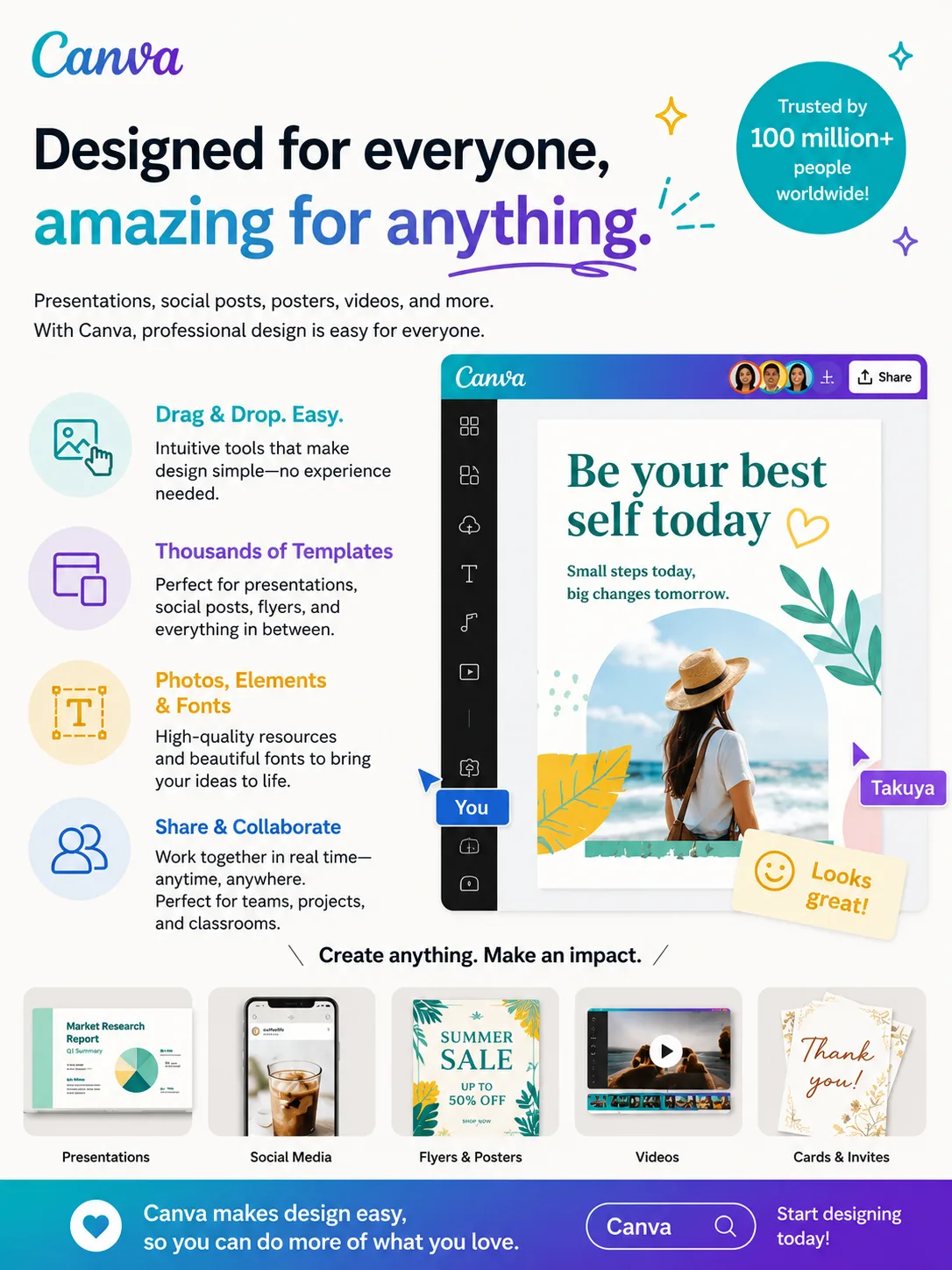
Canva AI One picture says it all.

Canva AI

Canva AI Overview

The biggest change in Canva AI 2.0 is that there’s much less time spent “looking for the right button.”

For example, imagine you need to create a full set of content for a new product launch.

In the past, you might start by writing the copy, then look for images, then make the presentation deck and social media creatives, and finally try to make the colors and fonts feel consistent across everything.

Now, you can simply describe the whole task upfront.

The AI can handle the copy, images, layout, and brand style based on what you need. If something doesn’t look right, you can just tell it what to change and it will revise that part.

One of the core parts of this upgrade is conversational design.

Requirements you mentioned earlier in the conversation are carried forward, so you don’t have to keep repeating yourself every time.

Agents are also taking on more of the work.

If the task needs image generation, the AI can call image capabilities. If it needs layout work, it can handle layout. Users no longer have to manually switch tools step by step for every part of the process.

Another very practical update is layered editing.

Designs generated by AI are still editable at the element level. Text, images, and graphics can all be adjusted separately afterward, instead of being locked into a single flat output that you either accept as-is or completely redo.

Memory Library is especially useful for people who regularly create content for the same brand.

It can remember commonly used colors, fonts, and even certain creative preferences. The next time you create something similar, you don’t need to repeat the same instructions all over again.

Taken together, these updates mean Canva AI is no longer just a tool for “generating an image for me.”

In everyday use, it feels more like having an assistant inside Canva that you can directly brief and work with.

Canva AI Pricing

PlanPriceDescription
Free $0 Good for occasional image creation and trying out AI. AI usage is limited, but it’s enough for light use.
Pro $15/month per person Better suited for individual creators, with more premium templates and assets, background removal, brand tools, and higher AI usage limits than the free plan.
Business $20/month per person Designed for marketers, small teams, and solo business owners. It adds higher AI usage limits plus more brand and team features on top of Pro.
Enterprise Custom pricing Designed for large organizations, with a focus on permissions, security, brand management, and enterprise support. Pricing varies by company.

Canva AI Key Features

  1. Conversational design
    Just describe what you want to make, and the AI can generate presentations, social media graphics, documents, and other designs. Once the first version is ready, you can keep refining it through conversation instead of starting over.
  2. Agents automatically use the right tools
    Once you give it a goal, Canva AI can decide whether it needs to write copy, generate images, adjust the layout, or apply brand guidelines. This cuts down on a lot of manual tool switching.
  3. Layer-by-layer editing
    AI-generated designs remain fully editable. Text, images, and graphics can all be adjusted separately, so if one part doesn’t look right, you don’t have to regenerate the entire page.
  4. Brand and style memory
    It can remember frequently used brand colors, fonts, and certain creative preferences. If you regularly create content for the same brand, this saves you from repeating the same setup every time.
  5. Image, copy, and design generation
    Magic Write can help with copywriting, Magic Design can quickly generate design concepts, and features like Magic Edit let you modify images directly using text instructions.
  6. Third-party integrations
    It can connect with tools like Slack, Gmail, Google Drive, Notion, and Zoom, allowing you to use existing materials directly instead of manually copying everything into Canva.
  7. Scheduled automation
    You can set up recurring tasks, such as creating a batch of social media content every week or regularly putting together work summaries.
  8. Canva Code 2.0
    Beyond standard images and layouts, you can now use conversation to create interactive pages, forms, and other simple interactive experiences.

Canva AI Editorial Review

Canva AI is especially useful in a very common situation:
you know what you want to make, but you don’t want to start from a blank page.

Say you suddenly need a promotional poster.

Before, you might search the template library for “sale,” scroll through a bunch of options, pick one that looks close enough, and then start changing it piece by piece.

Now you can just say:

“Create a summer sale poster with a blue background, the product in the center, and the price clearly highlighted.”

You’ll get a first version pretty quickly.

It may not look amazing right away, but at least you’re no longer staring at a blank page.

It’s similar with presentations.

Give it the topic, a rough structure, and the colors you want, and the AI can lay out a first draft for you. If you’re not a professional designer, that alone can save quite a bit of time.

But once you get into very detailed adjustments, it becomes less smooth.

If you need the spacing on every slide to be exactly the same, or you only want to move one element by a few pixels, it’s often faster to just drag it yourself.

There are also more subjective requests like:

“Make it feel more premium.”
“Make it younger.”
“Make it look less like a template.”

The AI may not understand exactly what you mean on the first try.

Sometimes it takes two or three rounds of adjustments.

So in practice, I prefer using it to build the basic structure and overall direction first, then finishing the details myself.

If there’s too much text, I cut some. If an image doesn’t work, I replace it. If the spacing feels off, I adjust it manually.

Used this way, the whole process feels much smoother.

Summary

Pros

Very easy to get started

This is probably Canva AI’s most obvious advantage.

You don’t need to know Photoshop or understand professional design terminology. If you can describe what you want, you can start using it.

Great for creating a first draft

Sometimes the hardest part of design isn’t making revisions. It’s figuring out what the first image or first slide should look like.

Canva AI can lay out the content and structure for you first.

Even if you only keep half of what it generates, it’s still much faster than staring at a blank page and starting from scratch.

You can keep editing after generation

This is an important point.

After the AI creates a design, text stays editable as text, images stay editable as images, and graphics can still be adjusted individually.

You don’t have to regenerate the entire design every time something feels off.

Canva already has a huge library of templates and assets

Even if the AI result is only average, you can immediately swap the template, image, or font.

In practice, the final version often isn’t exactly what the AI generated. The AI gives you a starting point, and then you continue building with Canva’s existing templates and assets.

It covers most everyday content needs

Presentations, social media graphics, posters, documents, short videos, and even simple web pages can all be handled in one platform.

For most office users, that’s more convenient than switching between several different tools.

It makes brand content easier for teams

Logos, fonts, and brand colors can all be managed in one place.

If multiple people in a company regularly create sales materials, social media graphics, or internal presentations, this is more consistent than having everyone find their own templates.

Cons

Fine details are still hard to leave entirely to AI

The overall direction is usually fine.

But once you start caring about font spacing, image positioning, alignment, and other small details, manually adjusting them can be faster than asking the AI.

You sometimes have to repeat yourself

This is especially true for subjective design requests.

You might say “make it cleaner,” and the AI simply removes things. You might say “make it feel more premium,” and it just changes the background to black.

That kind of mismatch is normal. It’s better not to expect a single prompt to produce the final version every time.

The free plan has limited AI usage

If you only use it occasionally, it’s usually fine.

But if you generate images, edit designs, and write copy every day, the free allowance can start to feel restrictive pretty quickly.

Also, different Canva AI features don’t necessarily consume usage in the same way, so having “200 uses” doesn’t simply mean you can use every feature 200 times.

Professional product retouching is still better handled by specialist tools

Basic product posters are fine.

But for glass, transparent materials, complex hair or fur, or product images with strict lighting and shadow requirements, Canva isn’t always the most reliable option.

If you’re processing hundreds of images a day, small issues like these become much more noticeable.

You still need to review the final result yourself

AI can occasionally make typos, choose the wrong image, or create something that looks fine at first glance but isn’t suitable for commercial use.

For brand campaigns, advertising, and anything that will be published publicly, a final human review is still necessary.


Who it’s good for

Marketing and social media teams

These roles often need visuals fast.

Campaign posters, social media covers, and ad creatives may need several versions in a single day, and Canva AI can save a lot of time in that kind of workflow.

Office workers who don’t normally do design

If you just need to make a quick presentation, report cover, or internal announcement, it probably isn’t worth learning a full professional design tool.

In those situations, Canva is very convenient.

Founders and small teams

When the team is small, there usually isn’t someone dedicated to every poster or sales deck.

Letting AI create the first draft means a lot of small tasks no longer have to start completely from scratch.

Teachers and students

It works well for lesson materials, class posters, presentations, and study resources.

The feature set is usually enough, and the learning curve is fairly low.

Teams that regularly create content for the same brand

If you have fixed logos, fonts, and brand colors, Brand Kit and memory features can be especially useful.

Who it’s not ideal for

People with very high standards for design details

Professional designers can still use Canva AI, but it makes more sense as an assistive tool.

For projects that require precise layout and tight visual control, you’ll probably still want to take over manually at the end.

Teams doing large volumes of e-commerce retouching

If your core work involves product cutouts, complex materials, and consistent lighting, specialist e-commerce retouching tools are usually a better fit.

People who want AI to finish everything and publish it immediately

That approach carries some risk.

Copy, images, and copyright issues may all need to be checked, especially for commercial work.

Large companies with strict data and permission requirements

In this case, usability alone isn’t enough.

You also need to check whether the Enterprise plan’s permissions, data controls, and team management meet your company’s requirements.

Editor’s take

What I find most useful about Canva AI 2.0 is actually pretty simple.

It cuts down on a lot of unnecessary hassle.

Most people don’t open Canva because they enjoy learning design software.

They open it because they suddenly need to deliver a presentation, poster, or social media graphic.

Before, the first step was often browsing through templates.

Now, you can just describe what you need and see what the AI comes up with.

If it looks good, keep refining it.

If it’s only average, at least you already have something to work from.

Professional designers obviously aren’t going to stop using specialist software just because Canva AI exists.

There are still plenty of detailed tasks it doesn’t handle very well.

But for everyday office work, marketing, and quick design jobs, I think it’s already good enough for a lot of people.

Especially for anyone who used to put things off simply because they didn’t know how to start, it’s now much easier to get a first draft on the page.

Whether the final result actually looks good is still up to you.


Comments (0)

Leave a comment

Advertisement 728 × 90

Similar Tools

Related News